ps4 controller not detected pc Causes and Fixes for PC Detection Problems
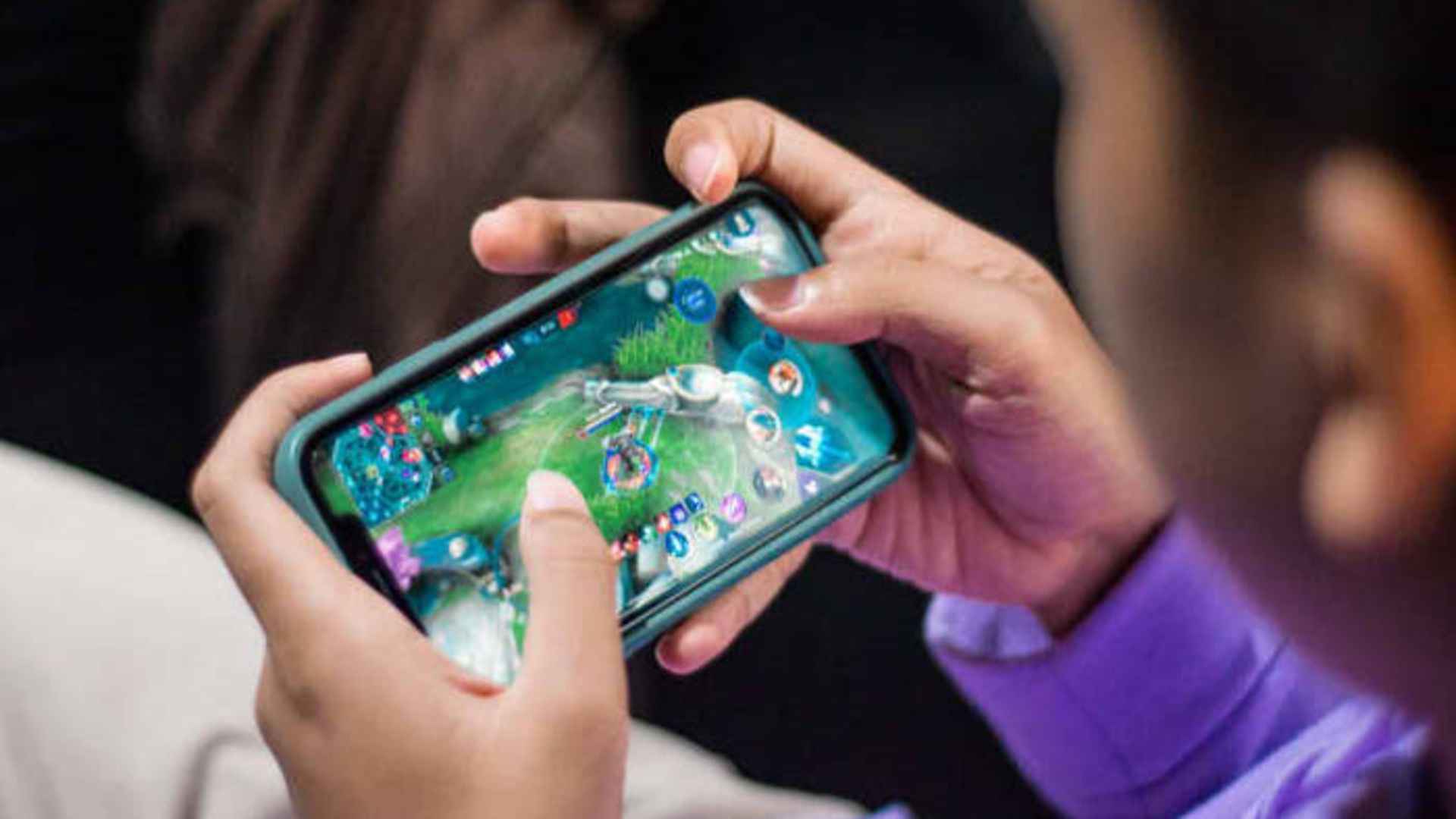
Connecting a PS4 DualShock 4 controller to a personal computer can elevate your gaming experience, providing comfortable layout options for modern action and racing titles. However, many gamers encounter frustrating technical hurdles where Windows completely fails to recognize the gamepad after plugging it in or pairing via Bluetooth. Understanding the underlying hardware and software triggers helps you systematically resolve these connection issues and return to your favorite games without delay.
Identifying Common USB Cable and Port Failures
The most frequent cause of a wired controller not showing up is using a faulty or charging-only micro USB cable. Many generic wires lack internal data transfer pins, meaning they will supply power to light up the gamepad but cannot send signals to your motherboard. To fix this, always test a different high-quality data cable and plug it directly into a rear motherboard USB port rather than an external extension hub.
Resolving Windows Bluetooth Connection Loops
Wireless setups frequently run into localized driver glitches where the controller remains stuck in a loop of pairing without functioning. Navigating to your Windows Bluetooth settings and manually removing the existing Wireless Controller device forces the operating system to clear its cached data. After deleting the broken link, hold the Share and PS buttons together until the light bar flashes rapidly to establish a clean pairing process.
Configuring Third-Party Mapping Software Correctly
Because Windows natively prioritizes Xbox input architectures, many modern games require external translation wrappers like DS4Windows or Steam to read the DualShock signal. If these programs are misconfigured or running simultaneously, they can conflict with each other and completely block the device from working. Ensuring you close conflicting applications and enable exclusive mode options within your software configuration usually restores instant game recognition.
Updating Device Manager and Human Interface Drivers
Sometimes corrupt hardware profiles in the Device Manager prevent the operating system from initializing the gamepad properly. Expanding the Human Interface Devices section allows you to find your controller, right-click it, and select the uninstall option to reset the system baseline. Unplugging the device and restarting your computer will prompt Windows to install a fresh copy of the official drivers automatically.